Claude MCP for your website: setup and first edits
Summary
- MCP (Model Context Protocol) is the standard Claude uses to connect to other services. In Claude it appears as a custom connector.
- Connecting a website platform takes one URL and a sign-in. As of November 2026, custom connectors are available on every Claude plan, including Free (limited to one).
- After connecting, Claude can edit pages, services and posts on the live site from a normal conversation, which removes most of the time spent learning an editor.
- The useful safety controls are on both sides: the permissions you grant the platform during sign-in, and Claude's per-tool approval settings.
- Claude works best when the request names the page, the audience and the constraint. Vague requests produce generic pages.
Claude MCP explained for website owners
Most website builders now include an AI panel inside their editor. You type a request into a small box, and the builder's own model writes a paragraph or generates a layout. The model is the builder's choice, and its context ends at the edge of that editor.
MCP works the other way around. Model Context Protocol is an open standard, published by Anthropic in late 2024 and since adopted by OpenAI and other AI companies, that lets an AI assistant call tools provided by another service. A service that supports MCP runs an MCP server: a web address that tells Claude which actions are available (for example, "read a page" or "create a service") and carries them out when Claude asks.
For a business owner, the practical result is that the assistant you already use for email drafts and planning can also work on your website, in the same conversation. You can paste in last month's class schedule, a price list from a spreadsheet or notes from a client call, and ask Claude to turn them into pages on the site.
Search results for these terms mix developer material with guides for end users, and three words cause most of the confusion:
- MCP server: the service side, provided by the website platform. Developers searching "mcp server" usually want to build one; business owners only need the address of an existing one.
- Connector: Claude's name for an MCP connection in its apps. Anthropic offers a directory of prebuilt connectors; a service that is not in the directory is added as a custom connector.
- Claude Code: a separate coding tool for developers. It is not required for anything in this guide.
Claude custom connector requirements
A Claude account. Anthropic's help center lists custom connectors as available on Free, Pro, Max, Ultra, Team and Enterprise plans as of November 2026. Free accounts can add one custom connector. On Team and Enterprise plans, an organization owner must add the connector first under Organization settings, and each member then connects individually.
A website platform with a remote MCP server. The platform must expose its MCP server on the public internet, because Claude connects from Anthropic's cloud rather than from your computer. It should also support sign-in (OAuth, the same kind of "Sign in with…" flow used by most apps), so that you never have to copy a secret key into Claude.
A computer for the first setup. Claude's help center describes adding custom connectors from the mobile apps as a beta. Connectors added on the web or in Claude Desktop appear on mobile at the next sign-in, so the simplest route is to set up on a computer once and use the connection from anywhere afterwards.
Connecting Claude to your website, step by step
The menu names below follow Anthropic's help center as of November 2026. Claude's interface changes often; if a label differs, the help center article linked above has the current wording.
Copy the MCP server address from your website platform. On AHHA it is shown on the AI connections page of the dashboard. Other platforms usually list it under integrations or developer settings.
Open Claude's connector settings. In claude.ai or Claude Desktop, open Customize from the sidebar and select the Connectors tab. Click + Add in the top-right corner, then Add custom connector.
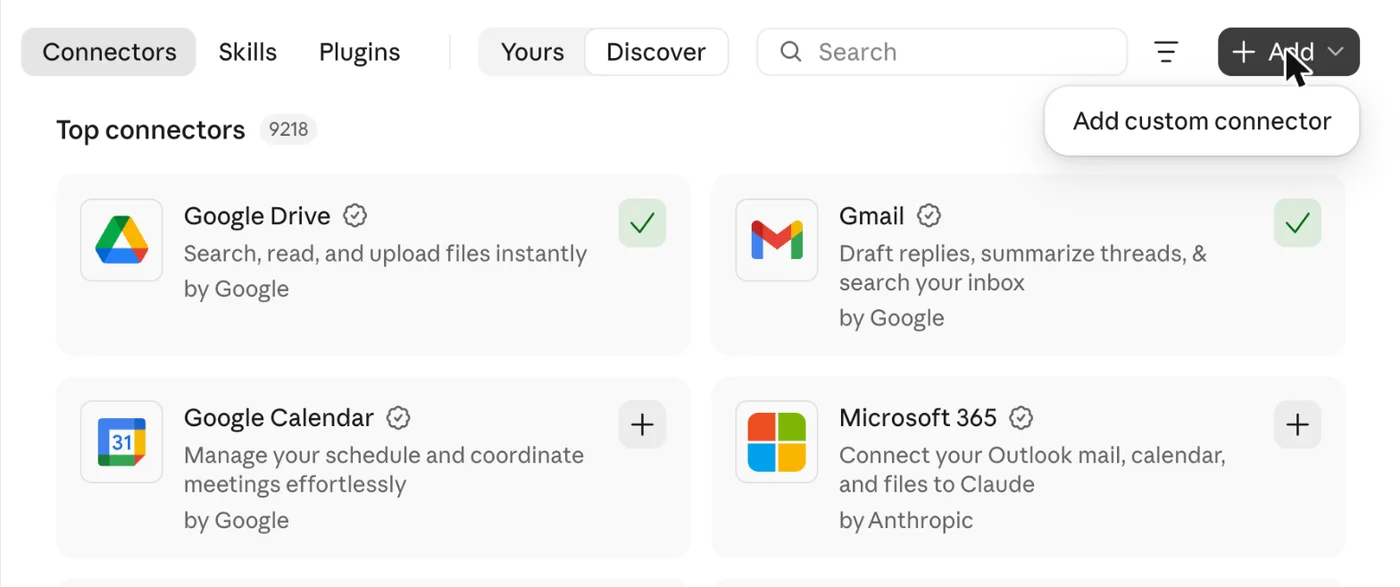
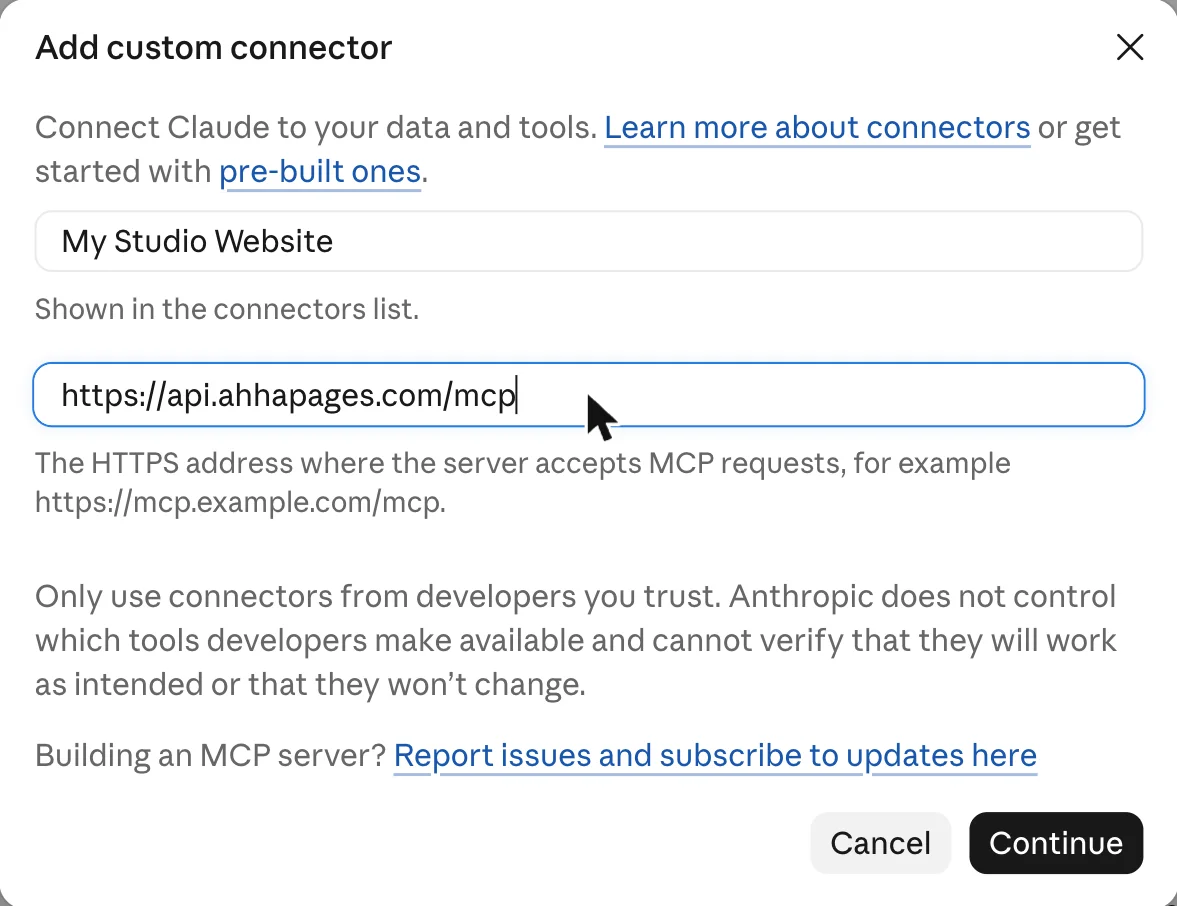
Name the connector and paste the address. The name is only for your own list, so the name of your business or site works well. Click Continue, and Claude checks the server and looks up its sign-in settings.
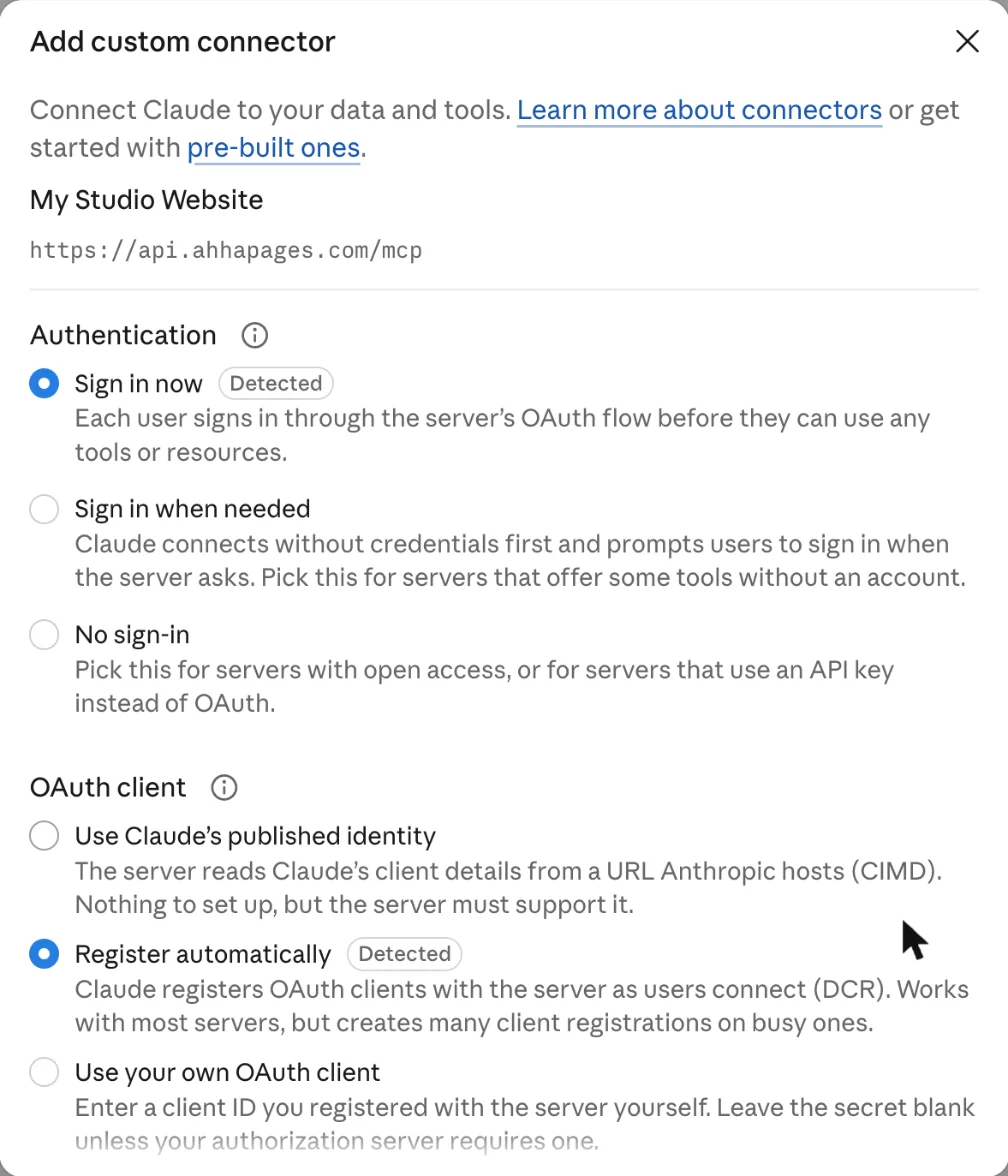
Keep the detected sign-in settings. Claude marks the options it detected on the server. For AHHA these are Sign in now under Authentication and Register automatically under OAuth client. Leave both as detected, leave Request headers empty, and click Add.
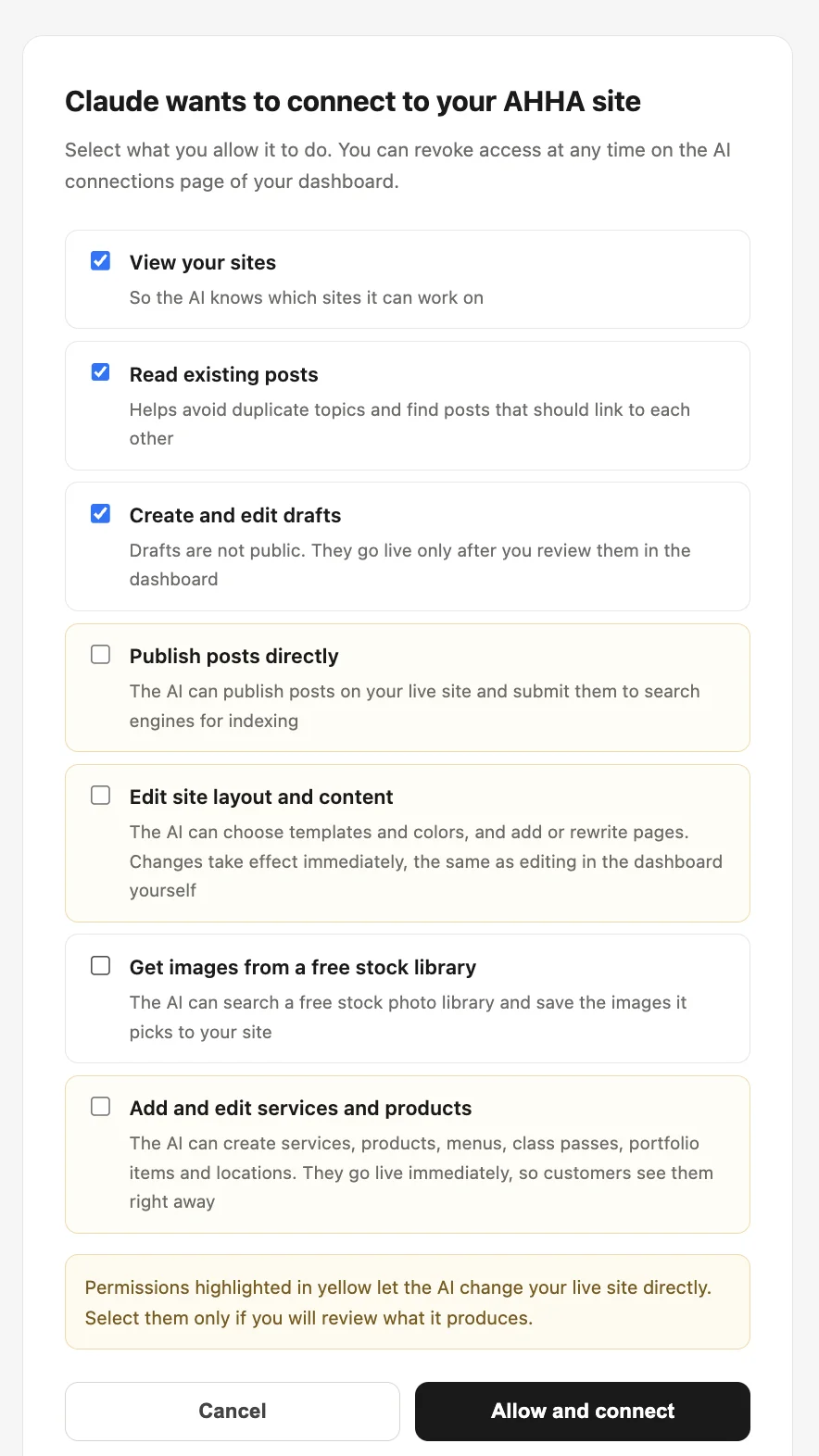
Sign in to the website platform and choose permissions. Claude opens the platform's own sign-in page. This screen belongs to the platform, not to Claude, and it is where you decide what Claude may do. On AHHA, publishing posts, editing site content and editing services or products are listed separately and marked as higher risk, so you can start with read access and drafts only.
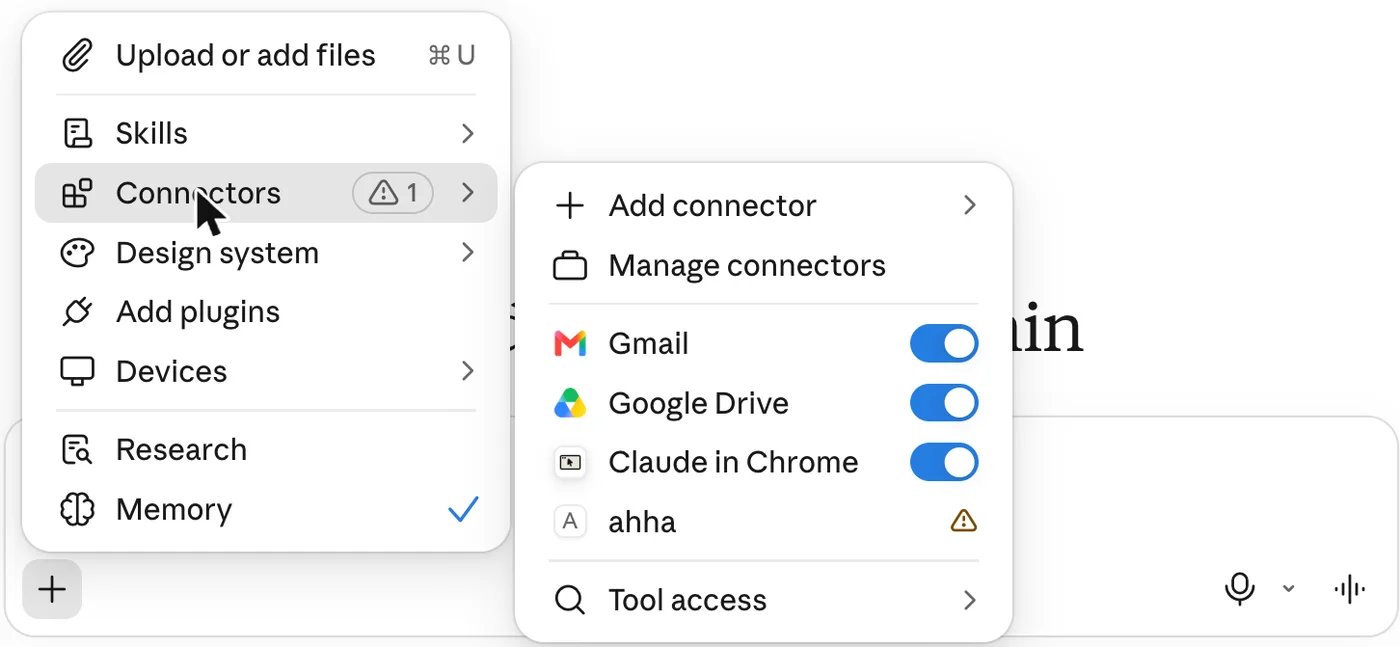
Turn the connector on in a conversation. In a new chat, click + in the lower-left corner (or type /), hover over Connectors and switch your website on.
To confirm the connection works, start with a request that only reads, and name the connector so Claude knows to use it instead of answering from general knowledge or a web search:
"Use the AHHA connector to open the homepage of my website and summarize what is on it, section by section."
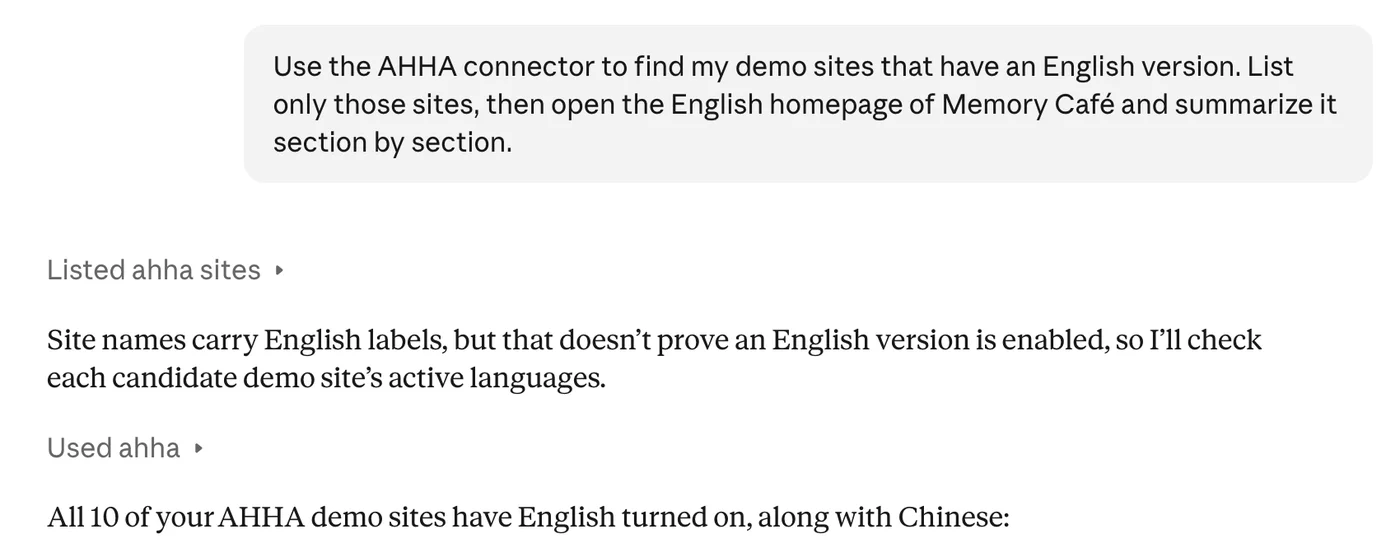
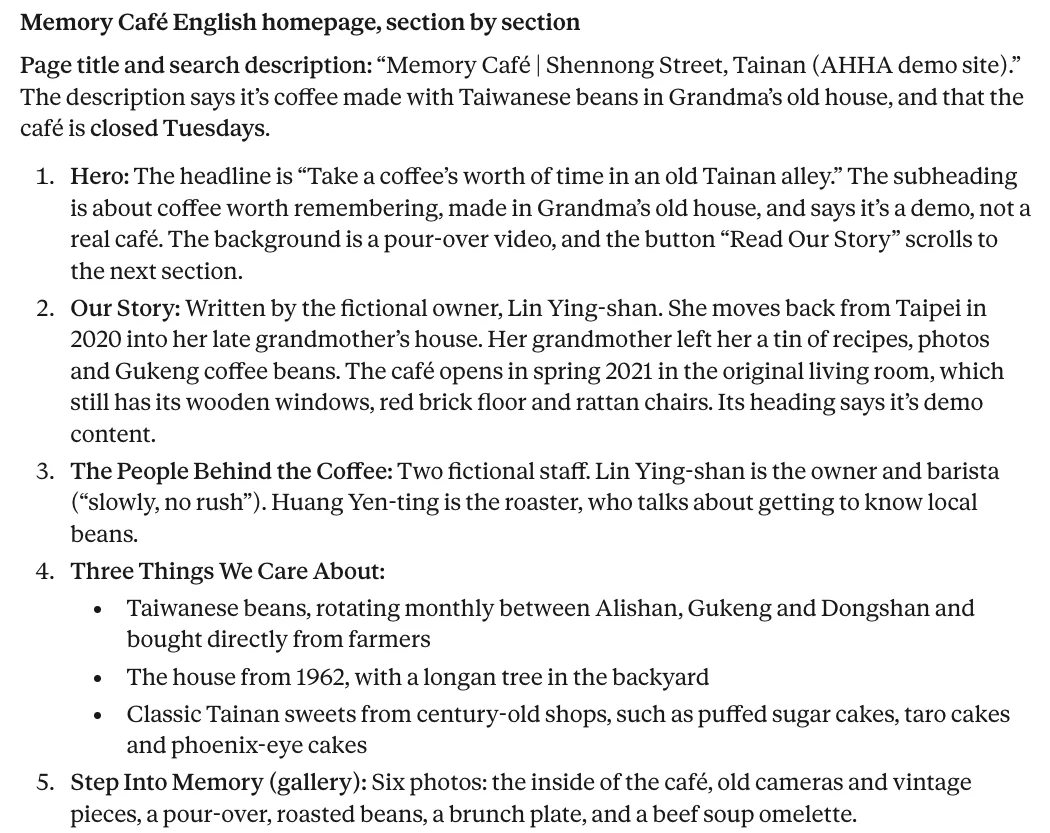
If Claude calls the connector and answers with your real page content, the connection is working. If it answers without calling any tools, or says it has no access, check that the connector is switched on for that conversation and mention it by the name you gave it in step 3.
If you later need to change the address or settings, Claude requires you to remove the connector and add it again. AHHA keeps the existing authorization when the same address is added back, so you do not need to approve permissions a second time.
First edits to ask Claude for
The first requests should be small enough to check in one look, and they should give Claude the context it cannot see on its own. Until Claude has used the connector a few times in a conversation, it helps to start each request with "Using the AHHA connector" or the connector name. Claude can read your pages, but it does not know your margins, your clients or the reason a page exists.
A request that works well names the page, the audience and one constraint:
"On the Pricing page, rewrite the intro paragraph for people comparing us with the gym down the road. Keep it under 60 words and mention that class packs never expire."
A request that tends to produce generic copy leaves all three out:
"Make the pricing page better."
Other first tasks that suit a connector well:
- Structured data entry. "Create three 60-minute massage services at $90, $110 and $140, with the descriptions from this list." Typing prices and durations into forms is where an editor is slowest, and the result is easy to verify.
- Turning existing material into a page. Paste a flyer, an email to clients or a course outline and ask for a page built from it. The facts come from you; Claude handles the structure.
- Consistency checks. "Read every page and list anywhere the opening hours or prices disagree." Reading the whole site is tedious for a person and quick for Claude.
- Blog drafts. Ask Claude to save a draft rather than publish, then review it in the dashboard before it goes live.
Check each change on the live site before asking for the next one. When Claude makes a series of edits in one go, a mistake in the first step is copied into every later step, and it is easier to catch it early.
Limits of Claude MCP for website editing
A connector changes how you give instructions, not what the platform can do. If the website platform has no gallery layout, asking Claude for one will produce either a refusal or an approximation using the blocks that exist. Claude can only call the tools the MCP server offers.
The quality of the result also depends on the input. Claude writes fluent copy about any business, including details it has inferred rather than been told. Prices, opening hours, credentials and claims about results should come from you, and they should be checked after every edit that touches them.
Design judgment is the other limit. Claude can apply a template, a color palette or a font pairing, and it can describe why one layout suits a service business better than another. It cannot see the page the way a visitor does on a small phone, so the final visual check remains a human task.
Connector interfaces are also new and change frequently. Claude caches the list of tools a server offers, so after a platform adds a feature, Claude may not see it until the connector is switched off and on again.
Claude MCP security and permissions
Anthropic's help center states that custom connectors connect Claude to services it has not verified, and recommends connecting only servers from organizations you trust. That advice applies to website platforms as much as to any other service, because a website connector can change what the public sees.
Control sits in two places: the platform decides what the connection can do, and Claude decides when it may do it.
Permissions on the platform side. These are chosen on the platform's sign-in screen and decide what the connection can do at all. A careful setup starts narrow: reading the site and creating drafts, without publishing or live edits. Permissions can be widened later, and on AHHA access can be revoked at any time from the AI connections page.
Approvals on the Claude side. Claude asks before it uses a tool unless you have allowed that tool permanently. The help center advises choosing Allow always only for tools you trust to run unsupervised. For a website, a reasonable rule is to allow reading tools freely and keep writing tools on approval, so that every live change passes in front of you once.
Prompt injection is a separate risk: text hidden inside content that tries to give the assistant instructions. A blog post or a client message stored on your site could contain such text, and Claude may read it while working. A platform cannot prevent the model from reading it, but it can limit the damage. AHHA marks site content returned to Claude as untrusted data, does not offer tools for deleting sites or exporting customer lists, and records every tool call in an audit log. Page edits can be rolled back to an earlier version from the dashboard.
Next step after connecting Claude
A good first session takes about twenty minutes: connect with read and draft permissions only, ask Claude to summarize the site and list inconsistencies, then ask for one draft post or one page rewrite and review it in the dashboard. That session shows how well Claude understands your business before it has permission to change anything public.
AHHA's AI connections page lists the requests the platform supports and the plans that include MCP access. On the AHHA side, MCP access needs a Studio or Pro subscription and is not available during the free trial.
The same connection also works with ChatGPT and Grok. Grok accepts custom connectors on free accounts: open grok.com/connectors (or Plugins in the chat sidebar), choose Add connector, then Custom, and paste the same address from your AHHA dashboard. Grok then opens the AHHA sign-in and permission screen described in step 5. Complete it in a web browser; signing in to the AHHA dashboard in the same browser first makes the step quicker. The ChatGPT setup will be covered in a separate guide.
References
- Anthropic Help Center, Get started with custom connectors using remote MCP
- Anthropic Help Center, Use connectors to extend Claude's capabilities
- Model Context Protocol, official documentation
- xAI, Grok Connectors
FAQ
What is Claude MCP?
MCP (Model Context Protocol) is an open standard that lets Claude connect to outside services. In Claude, an MCP connection appears as a connector. Once a website platform is added as a connector, Claude can read and change that site when you ask it to.
Do I need a paid Claude plan to use a custom connector?
No. According to Anthropic's help center (November 2026), custom connectors are available on Free, Pro, Max, Ultra, Team and Enterprise plans. Free accounts are limited to one custom connector.
Can I use Claude MCP on my phone?
Connectors added on claude.ai or Claude Desktop become available in the Claude mobile apps the next time you sign in. Adding a new custom connector from the mobile apps is still in beta, so the initial setup is easier on a computer.
Can Claude delete my website?
It depends on the tools the website platform exposes. AHHA does not give Claude a tool to delete a site, and each site owner chooses which permissions to grant during sign-in. Page edits are recorded and can be rolled back from the dashboard.
Is Claude MCP the same as Claude Code?
No. Claude Code is a coding tool for developers. Custom connectors work in the regular Claude chat on the web, desktop and mobile. Connectors added at claude.ai are also available in Claude Code for people who use both.
Does the AHHA connector also work with Grok?
Yes. Grok lets free accounts add custom connectors at grok.com/connectors: choose Add connector, then Custom, and paste the MCP address from your AHHA dashboard. Authorization happens in a web browser with your AHHA account, and the AHHA side requires a Studio or Pro subscription.
More in Website Design
Keep reading on related topics
Comments
Only members can comment, to keep out spam. Comments appear on this page.